How to Calculate CPU and GPU Bottleneck: A Complete Beginner’s Guide
Building or upgrading a PC involves more than simply buying the fastest processor or graphics card you can afford. To get the best performance, your CPU and GPU need to work well together. If one component is significantly more powerful than the other, it can create a bottleneck, limiting your system’s overall performance.
Understanding how to calculate a CPU and GPU bottleneck helps you make smarter purchasing decisions, avoid wasting money on unnecessary upgrades, and achieve smoother gaming or productivity performance.
In this guide, you’ll learn what a bottleneck is, how to calculate it, which factors affect it, and how to minimize it.
What Is a CPU and GPU Bottleneck?
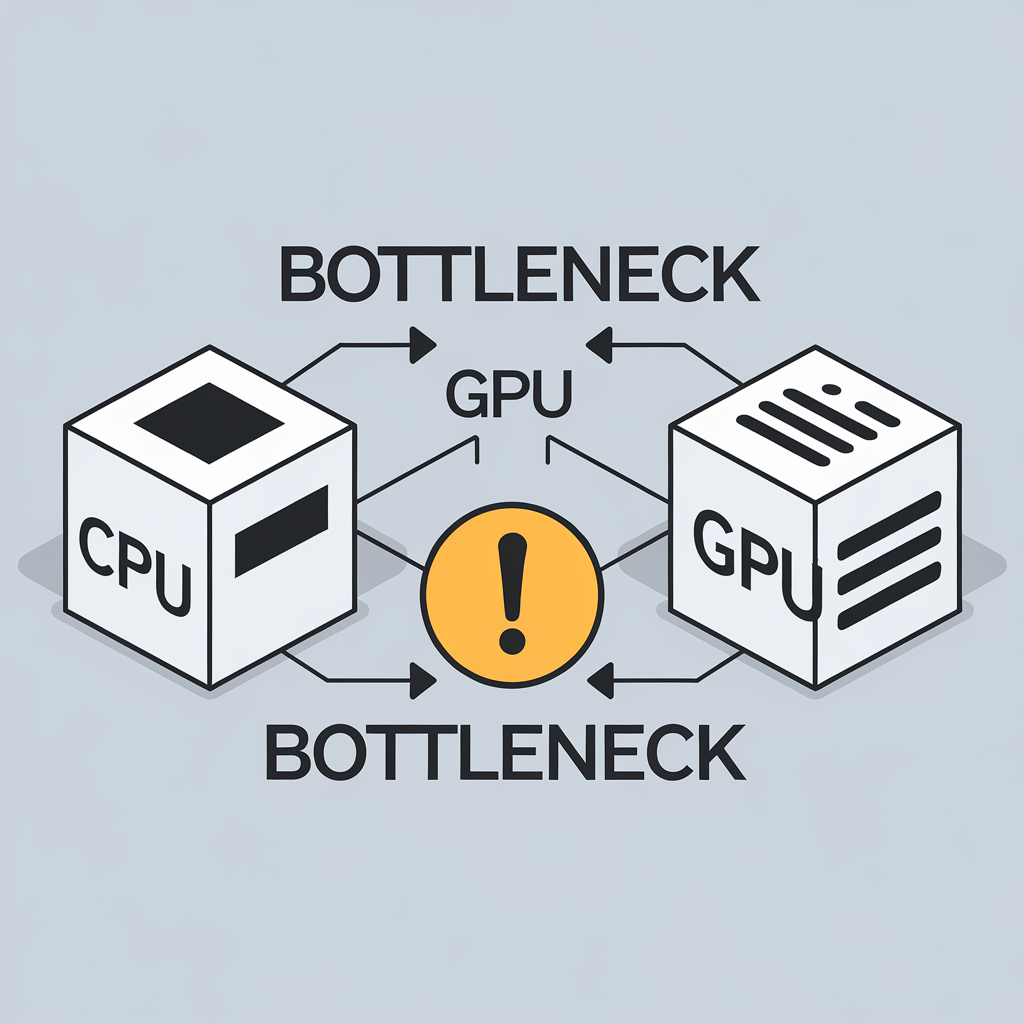
A bottleneck occurs when one component limits the performance of another.
Think of it like a highway. If six lanes merge into two, traffic slows down. Similarly, the slower component restricts the faster one.
Why Is Bottleneck Calculation Important?
Calculating a bottleneck helps you:
Factors That Affect CPU and GPU Bottleneck
Several factors influence whether your PC experiences a bottleneck.
CPU Performance
A processor with fewer cores, lower clock speeds, or an older architecture may struggle with demanding games or applications.
GPU Performance
A weaker graphics card can become the limiting factor when gaming at high resolutions or using advanced graphical settings.
Screen Resolution
Higher resolutions place more workload on the GPU.
Typical workload distribution:
1080p: More CPU-intensive
1440p: Balanced
4K: More GPU-intensive
RAM
Insufficient memory can reduce overall system performance and contribute to bottlenecks. Recommended RAM:
16 GB for gaming, 32 GB for content creation, Dual-channel configuration whenever possible
Storage Speed
Using an SSD instead of a traditional HDD improves loading times and helps reduce delays during gameplay.
Background Applications
Too many programs running simultaneously consume CPU and RAM resources, reducing available performance.
How to Calculate a CPU GPU Bottleneck
There are several methods.
Method 1: Use a Bottleneck Calculator
The easiest approach is using an online bottleneck calculator.
Simply enter:
The calculator estimates whether your processor or graphics card may limit performance.
While calculators provide useful estimates, they should be considered guidelines rather than exact measurements.
Method 2: Monitor Hardware Usage
Real-world testing is often the most accurate method.
Use monitoring software while gaming.
Observe:
General interpretation:
Method 3: Compare Benchmark Results
Review benchmarks for your CPU and GPU combination across the games or applications you use.
Look for:
These comparisons provide a realistic picture of expected performance.
Common Signs of a CPU Bottleneck
You may have a CPU bottleneck if you notice:
Common Signs of a GPU Bottleneck
GPU bottlenecks often include:
Is Every Bottleneck Bad?
No.
Every computer has some form of bottleneck because one component will always reach its limit before another.
The goal is not to eliminate bottlenecks entirely but to create a balanced system where neither the CPU nor GPU severely restricts overall performance.
Tips to Reduce CPU Bottlenecks
Consider these improvements:
Tips to Reduce GPU Bottlenecks
If the graphics card is limiting performance:
Does Resolution Affect Bottlenecks?
Yes.
Different resolutions shift the workload between the CPU and GPU.
| Resolution | Primary Limiting Component |
|---|---|
| 1080p | Usually CPU |
| 1440p | Balanced |
| 4K | Usually GPU |
This is why a CPU bottleneck may appear at 1080p but disappear at 4K, where the GPU handles more of the workload.
Recommended Balanced CPU and GPU Pairings
Some examples of balanced combinations include:
The ideal pairing depends on your budget, target resolution, and the applications you use.
Mistakes to Avoid
Many PC builders make these common mistakes:
Avoiding these mistakes results in a more balanced and efficient system.
Frequently Asked Questions
Conclusion
Calculating a CPU and GPU bottleneck is an important step when building or upgrading a PC. Whether you use an online bottleneck calculator, monitor hardware usage, or compare real-world benchmarks, the goal is to create a balanced system that matches your needs.
Remember that no computer is completely free of bottlenecks. Instead of chasing a perfect score, focus on pairing components that complement each other, choosing the right resolution, keeping drivers updated, and optimizing your system. With a balanced CPU and GPU combination, you’ll enjoy smoother gameplay, better productivity, and greater value from your hardware investment.